
01
Download MacDisplay.
One app for your Macs, free to try: drag it to /Applications or run it from a USB stick. On iPhone and iPad, the free MacDisplay app from the App Store.
MacDisplay extends your Mac's display to another Mac — even a 2012 one — or to an iPad or an iPhone: a true extended desktop, over Thunderbolt, Ethernet, USB or Wi-Fi. No hardware, no account, no cloud. €29.99 + VAT, once. Try it free now.
Thunderbolt or Ethernet between two Macs, the USB cable for an iPad or iPhone, or your local Wi-Fi. MacDisplay prefers the most stable connection — cable first, Wi-Fi last — and tells you which one it uses.
Open MacDisplay on both. Your devices find each other by themselves and appear in a list, each with an “Extend” button — or press ⌘⇧E and choose. The first time, the same six digits appear on both screens: compare them and allow. From then on, it connects on its own.
More space to work, wherever you are. Drag windows between screens as if they shared a single graphics card. Independent workspace, native cursor, native resolution — on a Mac, an iPad or an iPhone.
Most people already own a Mac sitting on a desk at home, half-asleep, doing almost nothing — and an iPad that comes out on Sundays.
And the same people, on the move, work all day on a single 13-inch display that's too small for serious work.
The second screen is already in the room. You just need the software that connects the two.
One app for your Macs, free to try: drag it to /Applications or run it from a USB stick. On iPhone and iPad, the free MacDisplay app from the App Store.
Same app on every Mac, no roles to pick. The devices that can act as your display appear in the “Extended display” list, with the connection they would use.
Compare the six digits the first time, then it connects on its own. Your desktop extends — a real second display, not mirroring.
MacDisplay is built the way a Mac app should be: local, lightweight, with no dedicated hardware or account, and a one-time license. Your Mac, your iPad and your iPhone become one workspace.
No dongle, no receiver box, no adapter to carry. A Mac, an iPad or an iPhone you already have, and a cable you already own. That's it.
No sign-up. No tracking. No telemetry. Your screen, files and commands never go through a server of ours, not even with the iPhone app: the internet is only for the license and updates.
No installer. Notarized by Apple, universal for Apple silicon and Intel. Runs from /Applications, the Desktop, or a USB stick.
MacDisplay prefers the most stable link and shows you which one it is using. iPad and iPhone connect over their USB cable or over Wi-Fi.
Your pixels never leave your network. No cloud relay. GDPR-friendly by design, not by promise.
Buy it once, own it forever. Updates included. No subscription, no in-app purchases, ever. The iPhone and iPad app is free.
Transfer files over Thunderbolt or Ethernet: drag them into the “To send” box or onto the corner panel, and they land in the other Mac's “MacDisplay/Received” folder — or wherever that Mac chooses, even the Desktop.
How file transfer works →Move the pointer to the other Mac and keep working with the same keyboard. Each Mac keeps its own apps and files. Share the clipboard too, if you want. Press ⌃⌥⌘ to come back to your own Mac whenever you like.
The keyboard and mouse guide →Keyboard/Mouse and File Transfer run at the same time, and they stay on while you extend your display. Only the Mac acting as your display pauses them, and they come back on their own when the session ends.
The free MacDisplay app turns an iPad — or an iPhone — into a true extended display for your Mac: full resolution, always landscape, your finger as the pointer. Over Wi-Fi or the USB cable, paired once with six digits and with no shared Apple Account. Only the Mac that extends needs the license.
Open the app and turn on “Available as a display”: the Mac finds the device, and you click “Extend” next to its name. The desktop extends at the device's full resolution, always landscape, and you choose the text size in the app's settings. The bar at the top shows the Mac's name, turns touch on and off, opens the keyboard and stops the session. The Mac remembers each device's settings.
Tap, drag, scroll and pinch on the extended display as if it were the Mac's trackpad: hold your finger still and a magnifier appears for precise taps. Apple Pencil is precise from the first touch. After every gesture the Mac's own pointer goes back where it was, so whoever sits at the Mac keeps working. It only needs the Accessibility permission on the Mac (from macOS 27, “Device Control and Data Access”).
Trackpad and keyboard on the phone's screen, with your Mac's keyboard layout — 37 of them, including Chinese, Japanese and Korean with iOS suggestions. Over the USB cable or Wi-Fi, free and with no time limits: being controlled uses no minutes.
From any app on the phone, Share → MacDisplay sends photos, videos and files to the Mac. The Mac sends to the phone from “Send to”, and they appear in Files → MacDisplay → Received. Files travel over the cable only, and you decide once: “Always Allow” covers the files and the display.
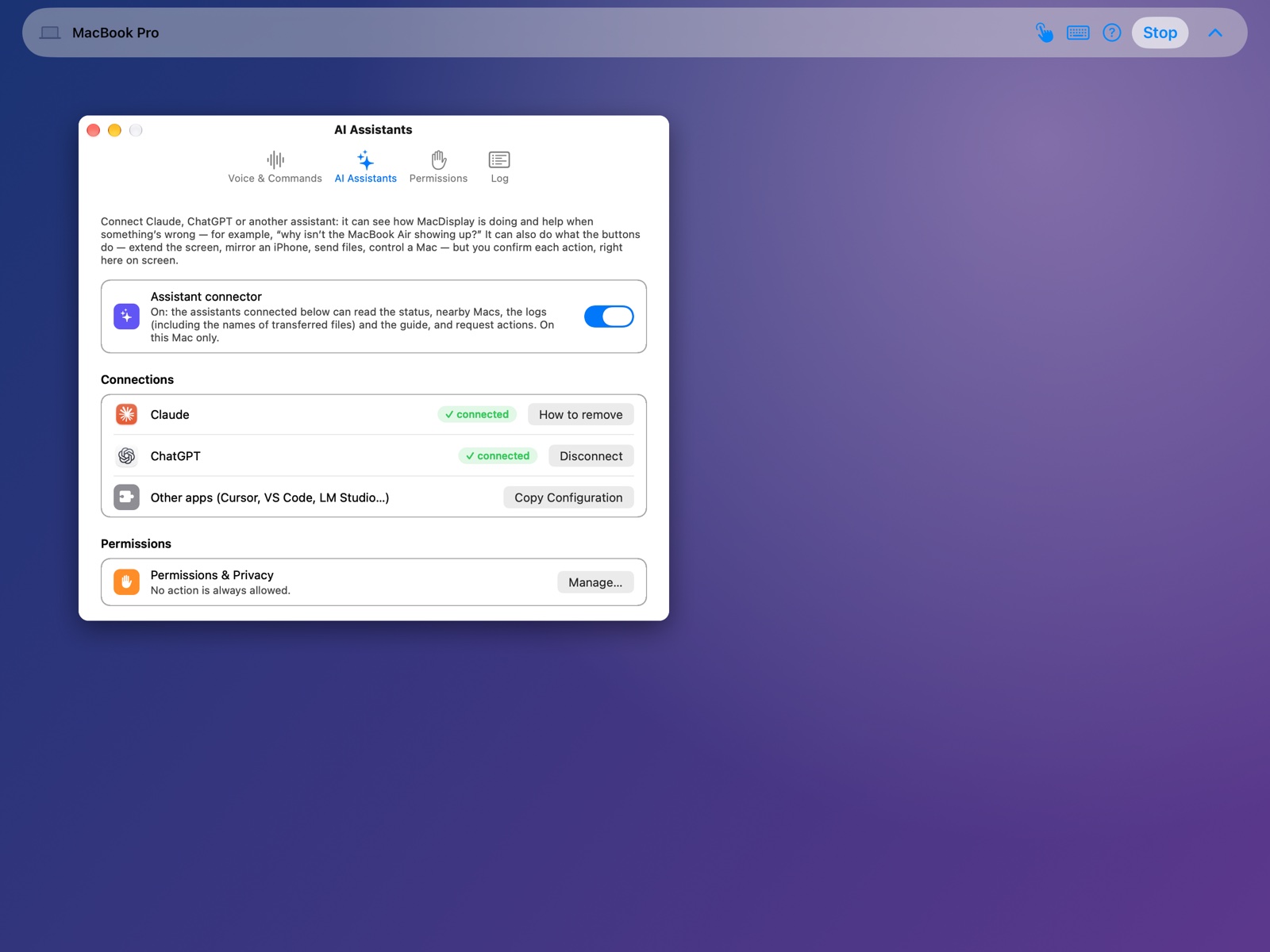
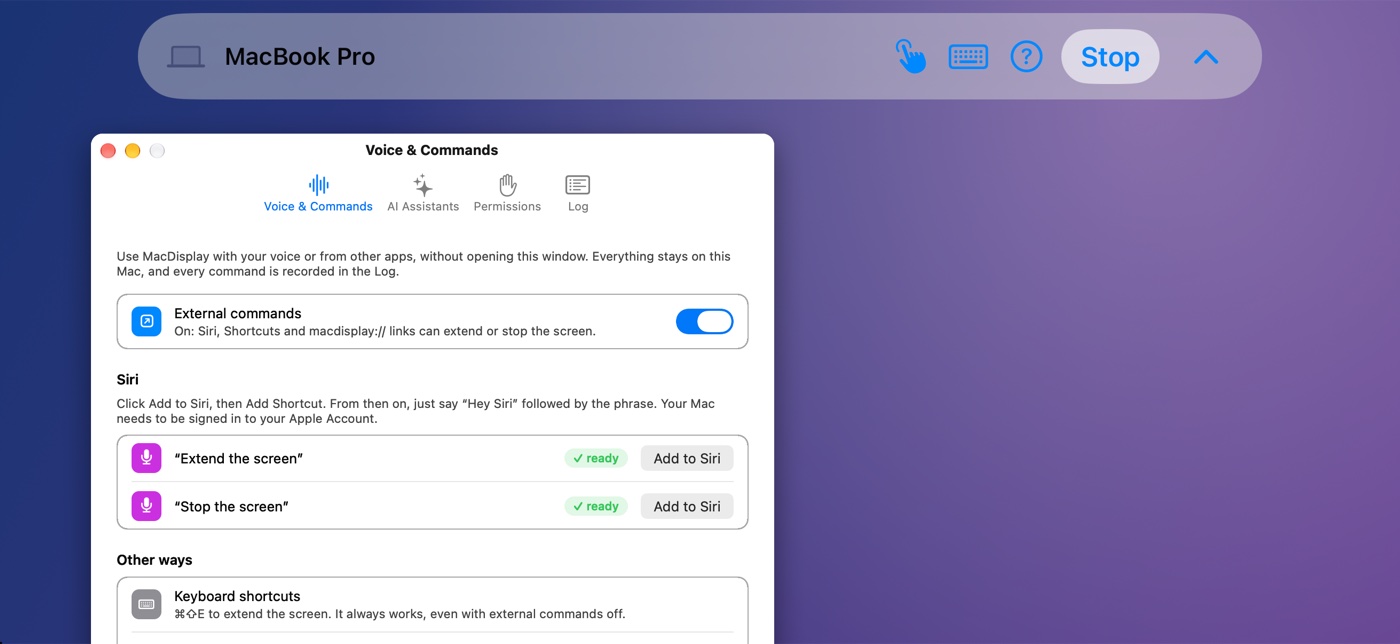
Say “Hey Siri, control my computer with MacDisplay” or “Hey Siri, open MacDisplay as a display”, or add the “Control a Mac” and “Act as a display” controls to Control Center (iOS 18). Nothing to set up; Siri and Shortcuts from iOS 16.4.
Free · Requires MacDisplay 4.0 on the Mac · iOS and iPadOS 15 or later
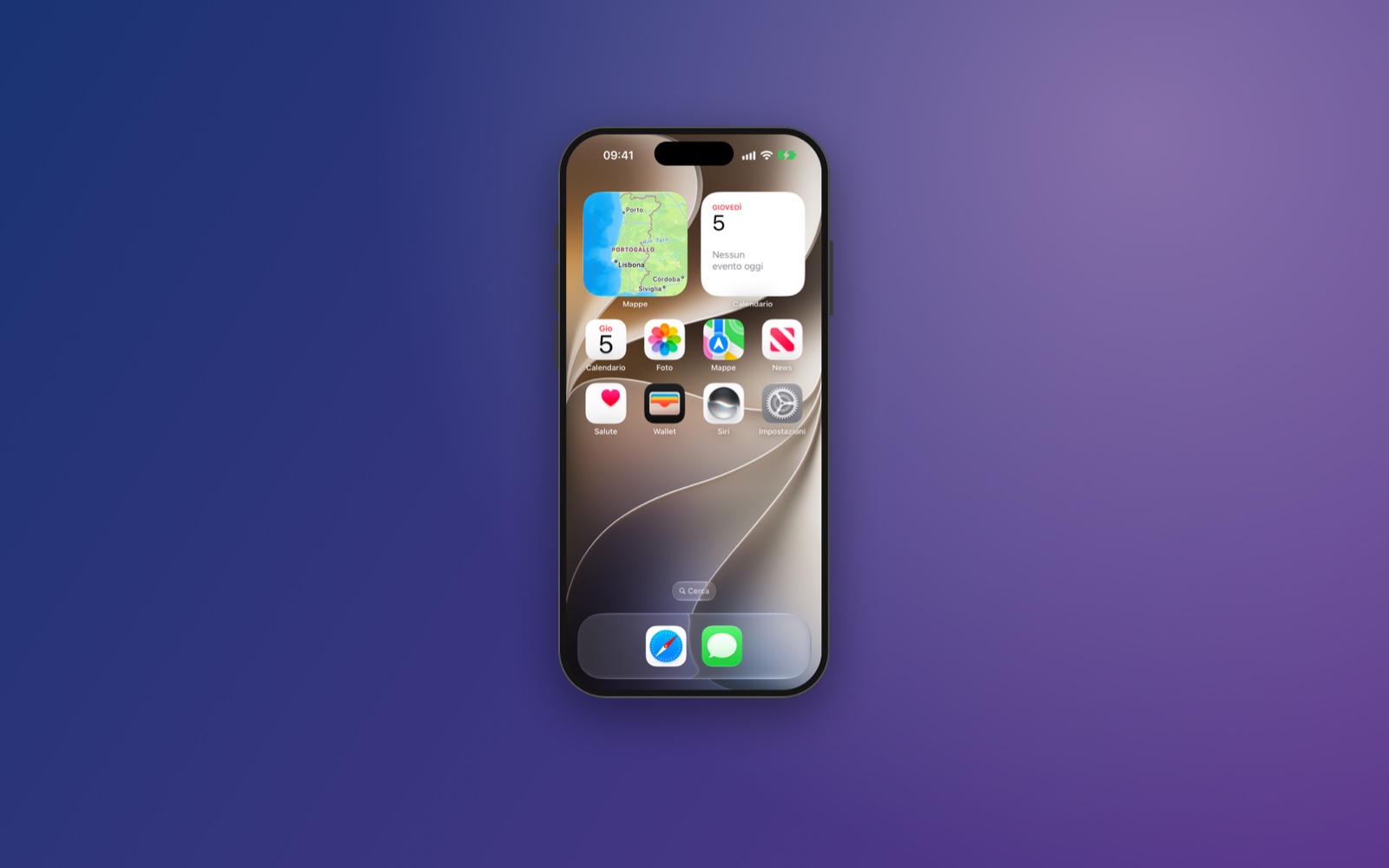
Connect an iPhone or iPad with its USB cable and click “Mirror on Mac”: its screen appears in a window on the Mac, with its frame and its sound. No app on the phone, no shared Apple Account, no license. Apple's iPhone Mirroring isn't available in the European Union; MacDisplay's is.
On any Mac MacDisplay runs on, in every country. Free, with no time limit, even in the free version — and it doesn't need the iPhone and iPad app.
For day-to-day use, MacDisplay just installs on your Macs. Quick Monitor is the bonus feature for when the Mac you'd like to use as a display isn't yours.
From “Prepare a USB Stick”, MacDisplay puts a small, ready-to-use monitor on any USB stick. Plug it into any Mac — a friend's, a colleague's, even one at a hotel front desk — double-click, confirm the six digits, and that Mac is your second display for the session.
When the session ends it closes by itself. Unplug, and nothing remains: no installer, no background service, no trace.
| Feature | Luna Display | Duet Display | Sidecar / AirPlay (Apple) | MacDisplay |
|---|---|---|---|---|
| Type of solution | Hardware dongle + app | App, subscription | Built into macOS | App, one-time purchase |
| Price¹ | $89.99 one-time (dongle) | from ~$4/month, or lifetime ~$199 | Included in macOS | €29.99 + VAT, one-time · iPhone and iPad app free |
| Free trial | No — requires dongle purchase | 🟢 7 days | — | 🟢 Free version, never expires |
| Mac-to-Mac extension | 🟢 Yes, with dongle | 🟢 Yes (macOS 12.3+) | Sidecar: iPad only · AirPlay: compatible receivers | 🟢 Yes, pure software |
| Extra hardware | Dongle required | 🟢 None | 🟢 None | 🟢 None |
| Subscription | 🟢 No | Yes (or lifetime) | 🟢 No | 🟢 No |
| Account required | Yes | Yes | Sidecar: same Apple Account · AirPlay: no shared account required | 🟢 None |
| Older Macs as a display | 🟢 Yes, supports older Macs¹ | Recent macOS required¹ | AirPlay: support depends on the model | 🟢 Intel Macs from 2012 (macOS 10.15) |
| iPad / Windows support | 🟢 Yes (iPad) | 🟢 Yes (iPad & Windows) | 🟢 Yes (iPad) | 🟢 iPad and iPhone, free app · no Windows |
| iPhone mirrored on the Mac | — | — | iPhone Mirroring: macOS 15 and iOS 18, same Apple Account; not available in the EU | 🟢 Yes, over USB, no app, free, in the EU too |
| Runs from USB stick, no install | No | No | No | 🟢 Yes, on any Mac (Quick Monitor) |
¹ Vendor-published data from their official websites, July 2026 — may change; check the vendors' sites. In two photographed Ethernet Clock Tests on an M4 Pro MacBook Pro and a 2017 iMac, MacDisplay showed approximate visible offsets of 80 ms and 70 ms. Results vary with hardware, settings and workload. All trademarks belong to their respective owners and are used for identification purposes only. Spotted an inaccuracy? Write to support@macdisplay.it.
Any Mac from 2012 onwards, an iPad, an iPhone. New, recent, or vintage. Your daily driver or a backup. Yours, a family member's, a colleague's. If it has a screen and an Apple logo, it can become your screen.
You're at your desk with the MacBook. You want more space. The iMac next to you — or the iPad — becomes your second display in seconds. Then you go back to the MacBook alone whenever you want.
You're at a client's office with your MacBook. Open MacDisplay on the meeting-room Mac: your desktop extends. You present, work, and take notes across two screens. When you leave, nothing remains.
On a trip, on vacation, at your parents'. You bring the MacBook and the iPad: the second screen travels with you. Or you find it on-site — a relative's Mac, a friend's — and a USB stick is enough to turn it into a monitor.
At a coworking space, at university, on a group project. The Mac of the colleague next to you can become your second screen for an afternoon. Same app, same network, double the space. Disconnects when you're done.
MacDisplay is private by nature. It connects your own devices and gets out of the way.
If you bought a Mac in the last fourteen years, MacDisplay will run on it. iPads and iPhones from iOS 15 join in with the free app.
Try MacDisplay with no account and no credit card. The free version includes Extend Display, Keyboard/Mouse, and File Transfer, with limits on usage time and file sending. Controlling the Mac from your iPhone and mirroring your iPhone on the Mac are free, with no limits at all.
Extend Display and Keyboard/Mouse share the same 10-minute blocks. Reconnecting or switching between the two does not restart the block.
Once a block is used up, wait 60 seconds before starting the next one.
One daily allowance, shared between Extend Display and Keyboard/Mouse. It resets at midnight.
Send up to 2 GB per day, with a maximum of 2 GB per transfer. This resets at midnight too.
Limits apply on one side only.
Only the Mac extending its display, controlling another Mac, or sending files uses the allowance. Whatever acts as the display — a Mac, an iPad or an iPhone —, the Mac being controlled, and the device receiving files are always unlimited, even in the free version.
One €29.99 + VAT license removes the free-version limits for Extend Display, Keyboard/Mouse, and File Transfer — towards Macs, iPads and iPhones alike.
No 10-minute blocks, no 60-second cooldown, no daily cap. And no limit on the gigabytes you send.
Activate your license on the Macs you use to extend the display, control another Mac, or send files.
Acting as the display — a Mac, an iPad or an iPhone —, being controlled, and receiving files are unlimited even in the free version.
“Super! I had tried other apps before this one, but none of them satisfied me in terms of quality and stability like MacDisplay. I definitely recommend it!”
“A fantastic app! MacDisplay works perfectly, it's very intuitive, fast and easy to use. An excellent experience, it exceeded my expectations. I highly recommend it!”
“As an owner of both a Mac Studio (2023) and an iMac (2019), I strongly wanted to get use of the older Mac as an 2nd display for the newer one. For some time now, I've used a competitor's technology but have never been quite satisfied with the quality of the displayed content or the speed of response. Enter MacDisplay. A software solution that just works, and works very well. Responsive and clear. And the Support Staff is incredible, promptly responding to an issue (I created) with expert help and additional suggestions for best performance. The app price? Wow! Distinctly affordable. This is THE 'use an old Mac as a display' solution. Kudos, MacDisplay.”
“A friend recommended MacDisplay and, having tried it, I have to say I'm really happy with the purchase. I've been using it for over two weeks now to turn my old 2018 iMac into a second screen for my MacBook Pro. I chose to connect the two over Ethernet, since I already had the cable and the adapter, so I didn't need to buy a Thunderbolt cable. I use it mainly for work and for what I need it works really well. The connection is stable, and being able to bring an old iMac back to life as a second monitor was a very convenient solution that saved me from buying another screen. Something else I particularly appreciated is the support: every time I needed information or a hand with some small problem, I always got quick and helpful replies. I would definitely recommend it.”
“A really great experience! I connected my MacBook to my old iMac without any trouble and used it as a second screen. Simple setup, stable connection, and everything worked right away. Highly recommended!”
“I tried MacDisplay to turn the screen of an old Mac into a second monitor and the experience was really positive. Setup is simple and intuitive, even for someone who isn't particularly expert, and in a few steps I managed to connect the screen. Support was really fast and clear.”
“I tried MacDisplay with a 2020 MacBook and a 2017 iMac 5K connected over Thunderbolt. Latency is very low and image quality is excellent. For productivity and everyday use, even for long stretches, I had no problems. I wouldn't recommend the Wi-Fi connection unless your network is really good. A great way to turn an iMac into a second monitor.”
“I tried the app connecting my 2021 MacBook to my boyfriend's, and it worked really well for me. It's very handy when we are travelling or away from home, because I can use the second MacBook as an extra screen to work and study more comfortably. Simple, practical and genuinely useful. I recommend it to anyone who wants to work with two screens without carrying an external monitor.”
Reviews are collected and moderated on Trustpilot, an independent platform. Quotes are reproduced faithfully.
Price excludes VAT. Local VAT applied automatically at checkout.
Requirements: macOS 12.3 or later on the Mac that extends · macOS 10.15 or later on a Mac used as the display · iOS and iPadOS 15 or later on iPad and iPhone.
Free to download and try. Secure payment through Stripe.
If something isn't covered here, email support@macdisplay.it — in English or Italian.
An iPad, an iPhone or another Mac as an extended display, iPhone and iPad Mirroring on the Mac in the EU too, and the Mac controlled from your phone. The iPhone and iPad app is free.
Turn a spare MacBook into your Mac's second screen: requirements, a wired connection, and how it differs from Sidecar and AirPlay.